Fix My Pen Makes your Wacom Tablet JUST WORK on Windows 7
 Saturday, August 13, 2011 at 9:50AM
 If you are using an older Wacom tablet with Windows 7 the Fix My Pen tool will help you get rid of these annoying things in Windows 7:
- Dynamic Feedback “Rings” when clicking
- Pen Flicks
- Tablet PC input panel
- Press-and-hold delay when clicking
NOTE: If you are using Windows 8 or 10, or have a newer Wacom see this post: The Windows and Wacom Tablet Nightmare is Over
Instructions
Download Fix My Pen from here: https://github.com/saveenr/Fix_My_Pen/releases
Right-click on the ViziblrFixMyPen.exe file and select Run as administrator.
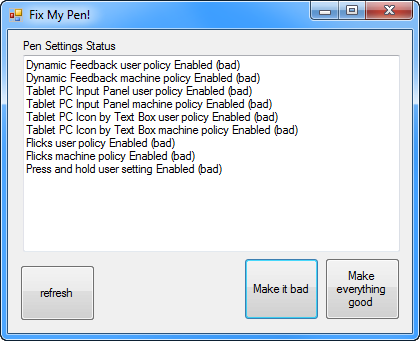
When Fix My Pen starts, you will see all the settings are marked “bad”.
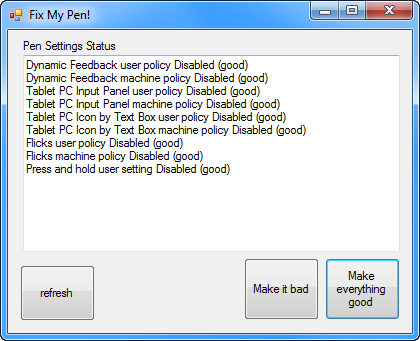
Click Make everything good. Then the program will look like this.
Close the program.
Log-out and log back in to Windows .
Now you can use your Wacom pen without all the Tablet PC nonsense.
I have tested it on Windows 7 Enterprise, Ultimate, and Home Premium.
To Verify that it Works
The Flicks icon will no longer be visible in the Notification Area

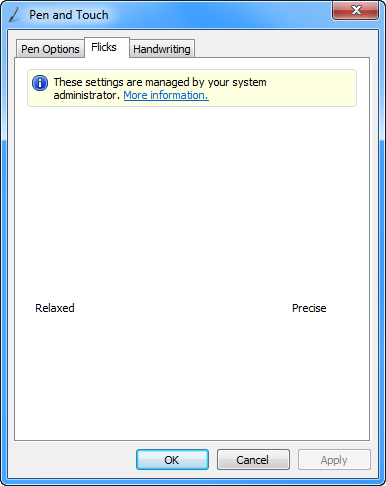
The Flicks tab in the Pen and Touch control panel will look like this
The Tablet PC Input panel will no longer be visible on the Desktop
The Tablet PC icon will no longer show up next to text input boxes
The Tablet PC Input panel options in Control Panel will have several items disabled and grayed-out:
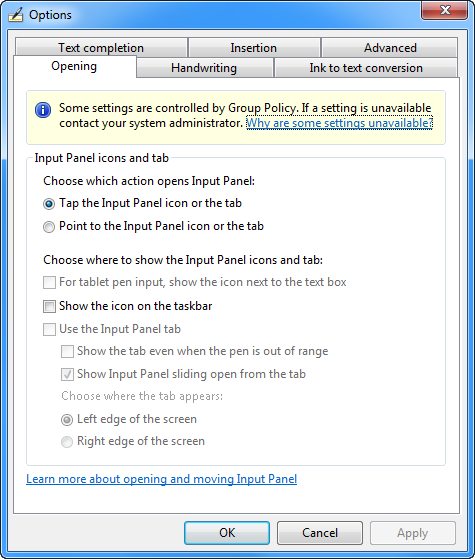
The Press and Hold value in the control panel will be disabled.

Dynamic Feedback rings will be disabled and you will no longer see them when clicking.
Technical Notes
On Windows 7 and Windows Vista you have to follow an arcane set of instructions like this. Fix My Pen, automates those steps – by setting the appropriate Windows registry keys.
License Terms
This is an open source tool distributed under the standard MIT License. You can see the full text of the license here: https://github.com/saveenr/Fix_My_Pen/blob/master/README.md
Source Code
It’s all up here: https://github.com/saveenr/Fix_My_Pen/
Reader Comments (56)
Worked just fine for me! I've been searching a solve for this for long. Thanks a lot! No more damn circles!
OH MY GOD THANK YOU
Yes! This is just what I was looking for!
It was a hassle-free, flawless solution to a problem that was getting on my nerves!
Thank you so very much for this!
You win!
Mother of god YES thank you so much, I was going crazy over this bullshit but this worked wonderfully
Thank you SO MUCH !!!
This is incredibly helpful!
It was ridiculous trying to get rid of these annoyances, and you've gone and made a little program that makes all of them disappear in one go.
Thank you so much for this! =D
Thank you very much for this (sigh of relief).
I dug out my Wacom Tablet to give it another try and hit all the common frustrations.
Much appreciation.
Thank you so much. This was soo helpful!
However I still get a lag when i try to draw with my Intuous 2 (windows 7) , it´s like every 10 seconds or so, the pen stops for half a second , it´s really annoying...any idea on how to fix this problem, please?
Thanks!!
There is a much simpler method of doing this that doesn't involve mucking around with the registry:
1) Go to Control Panel -> Programs and Features
2) Click "Turn Windows features on or off"
3) Uncheck "Tablet PC Components" and click OK.
@Nathan - The technique you describe has some negative consequences for a set of users. Specifically the technique you describe also disables *desired* features such as "inking" in Word and Excel. The reason I recommend using the tool (or following the manual steps I describe elsewhere) instead of uninstalling the Tablet PC Components is that my technique and tools remove the behaviors that Wacom users hate without removing the Tablet features PC some people really do want.
Hello again, i posted yesterday to you Saveenr, but for some reason my post has been deleted? not sure why, i was asking if your program disables wisptis.exe permanently, and if it also affects pressure sensitivity within photoshop ? id like to know bfore i try it out :) thanks for all you have done for all us designers!
ahh i see i missed the recaptur!! oh well :(
@alfie - the tool does *not* disable WISPTIS.EXE permanently. For example, even after the tool runs, WISPTIS.EXE will still be loaded by Windows. Leaving WISPTIS alone is a deliberate part of the tool because I don't want to remove any Pen input features (like Inking) that other applications might depend on.
And here I've been doing all this manually on every new os install. LOL
This is a real timesaver, many thanks.
Thank you so much!
You have no idea how awesome this is. I have ONE issue. Your fix works great for 90% of my daily uses. However, I also use AutoCAD from time to time. I have my Wacom driver set for the forward click on the switch to be "middle-click" which allows me to pan within CAD, and the back set to "right-click" so I can pull up context menus, etc. Right-click is also used in other programs, windows explorer, internet explorer, etc., etc... When I start AutoCAD, the toggle switch stops working completely. I can minimize CAD, and it doesn't work in other programs. However, when I close CAD, it starts working again. Any idea what might be going on? Thank you so much!
Windows 7 Home Premium x64, Wacom Intuos5 Touch, AutoCAD 2012
Thank you very much..this is so awesome..
Strangely enough, after downloading and running Fix My Pen, I still got the dynamic feedback on my pen. When I opened the application again and clicked Make Everything Bad, everything worked great! The rings and animations disappeared. Any idea why?
@Danielle - haven't heard of that happening for anyone before. My first guess would have been that sometimes Windows takes some time to implement the pen settings. I am curious to know if this change will last for you.
Thanks man, great little tool. Specially having in mind that with every new driver install you have to do the thing again :)
Other interesting websites