Entries from August 1, 2012 - August 31, 2012

Wednesday
Aug292012

Odd Maps of Interest ... also MapPorn  

Below are four interesting maps I found recently. These inspired me. Here are some maps I've always wanted to make:

  • A Map of Software Development Concepts
  • A Map of Awkward Situations

For those who want to go deeper, check out the MapPorn subreddit.

Map of Online Communities from XKCD

http://xkcd.com/802/

Online_communities_2_large


Twin Peaks by David Lynch

http://www.austinkleon.com/2008/05/21/maps-of-fictional-worlds/

2229372901_69ee4a9e55_o


A Map of Music


http://blogs.guardian.co.uk/culturevulture/archives/2006/02/03/going_underground.html

Snap00123


A Map of Physics (1939) by Bernard H. Porter

http://bigthink.com/strange-maps/579-a-1939-map-of-physics

1939-Map-of-Physics-H2-954x715


Tuesday
Aug282012

Interlude 2012/08/28: IBM's Ad in the New York Times  

I have no idea or recollection what IBM advertising in today's New York Times, but I did like their full-page advertisement. Specifically this large graphic caught my eye.

(Click on the image for a larger version)

IMG_20120828_134623

I offer my apologies for the poor image quality. This was taken with my Galaxy Nexus 2 phone instead of a real camera. I performed a little bit of color correction to match the vibrancy I remembered on the printed page.

Related reading: Why did IBM Survive?


Monday
Aug272012

Windows 8 and HyperSnap Corner Clipping Problems  

[UPDATE] As September 16, 2012 HyperSnap 7.18.00 is available. I can confirm it now correctly captures window borders in Windows 8 RTM.

[UPDATE] I had an conversation with the HyperSnap developer on the HyperSnap support forums last night and the good news is this issue will be address in the next build 7.18.00 which is coming in September 2012.

A small thing you should keep in mind if you are using Windows 8 and HyperSnap.

Do keep in mind that issues like this are bound to arise with new versions of software as complex as an operating system. HyperSnap is a solid product –  indeed my favorite screen capture software –  and it gets updated very frequently. So, I have no doubt this will be fixed soon.

But until then, here's a quick rundown of what's going on.

Windows 8 no longer has rounded windows. Unfortunately the most recent version of HyperSnap (7.17.00) doesn't seem to recognize this. The result: it removes –  clips –  a few pixels at the corner when it captures a window on Windows 8.


Below is an example of a Windows 8 window with the background (I used the Capture Region feature in HyperSnap to get this image.)

Snap00117


But look at what HyperSnap does when you capture a Window:


Snap00118


You can plainly see the clipping that is happening.

Again, no worries for now, but if you are using a screen capture tool you may want to check what it is doing on Windows 8. In the meanwhile the native Windows 8 screen capture features do the right thing.


Sunday
Aug192012

Mocking up Windows 8-style Start Screen UIs with Visio  

I took a screenshot of the Windows 8 Start Screen and used that as a basis for creating a template for clearly communicating Metro or “Modern” (or whatever they are calling it now) layouts.

You can get the Visio Diagram Here:http://sdrv.ms/P8bXMD

Opening up the file you'll see this

Snap00051

I'll walk you though how this works.

MEASUREMENT UNITS: PIXELS AND POINTS

First, be aware that the Page measurement unit is in Points –  we use points as a proxy for pixels.

For example, if you want something to be 50 pixels wide by 30 pixels tall, then specify it at 50 points x 30 points.

PAGE SIZE

The document contains a page size shape. As you resize the page, this shape will automatically update.

Snap00052


WIDTH AND HEIGHT MARKERS

These shapes communicate pixel distances. Ad you resize the shapes, they will update their displayed value.


Snap00053


SPACER BOXES

Spacers are simple rectangular boxes they help make sure objects are separated by consistent distances.

Snap00055

The spacer in the document represents a 10x10 pixel square.


CONTENT BOXES

Content boxes show their width and height in pixels. Use these to indicate placeholders for layout content. 

Snap00057

EXPORTING AS A BITMAP

First look at the Page Size shape:

Snap00052

CLick File > Save As, then select the PNG output format, then click Save.

The PNG Output Options dialog will appear.

Snap00058a

In the Size section, select Custom. Set the Unit to pixels, then set width and height to what the Page Size shape reported – in this case 920x470.

And then click OK.

The exported bitmap will have the desired size, though you may notice that the sizes are often off by 1 pixel.


Saturday
Aug182012

Windows 8 RTM and Wacom Tablets - Even More Flawed Than Before  

PLEASE READ: The Windows and Wacom Tablet Nightmare is Over


  • [UPDATE on 2013/06/23] The latest Wacom drivers seem to fix the problem! Investigating now. Will post on it soon.
  • [UPDATE on 2013/05/26] Clarified and simplified the section on using older drivers
  • [UPDATE on 2013/01/24] Added link to petition and Microsoft communities site
  • [UPDATE on 2012/12/20] Added a note about the use of older drivers.
  • [UPDATE on 2012/12/27] Added link to a video that shows how affects the “click-drag” operation when using a pen.
  • [UPDATE on 2012/12/20] There may be way to at least disable dynamic feedback. Consult this post: http://viziblr.com/news/2012/12/21/a-possible-workaround-for-pen-dynamic-feedback-effects-and-w.html
  • [UPDATE on 2012/12/16] Added section on those with Touch displays.
  • [UPDATE on 2012/10/27] Added a correction based on reader comments.
  • [UPDATE on 2012/08/24] I have updated this post a bit –  my initial take was too forgiving.

Some minor things got better. Some major things are worse. The things that we fundamentally hated have now become impossible to fix.

A Quick Summary

  • Windows XP: things worked great
  • Windows Vista: The default behavior was undesirable but could be corrected by an average user.
  • Windows 7: The default continues to be undesirable, and correcting part of the behavior *Dynamic Feedback” was difficult.
  • Windows 8 (RTM): The default state is reasonable. If you enjoyed the original XP behavior you will be OK with the default behavior in Windows 8 –  with the exception of some odd bugs.


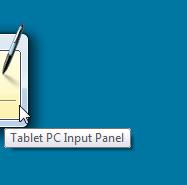
GOOD NEWS: The TABLET PC INPUT PANEL no longer appears by default

Windows Vista and Windows 7 would respond to the presence of the Wacom tablet with the Tablet Input Panel.

Snap000071

In Windows 8 RTM, this no longer appears by default.


GOOD NEWS: Flicks no longer interferes

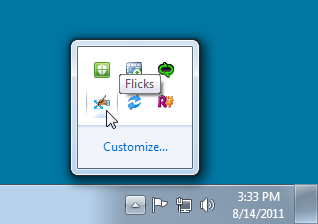
In Windows 7 we would see the Flicks icon in the notification area and the Flicks would be enabled by default. We had to disable both the icon and the flicks behavior in the control Panel.

Snap000072

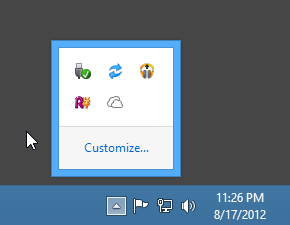
In Windows 8 RTM , the flicks icon lo longer appears in the notification area.

Snap00008

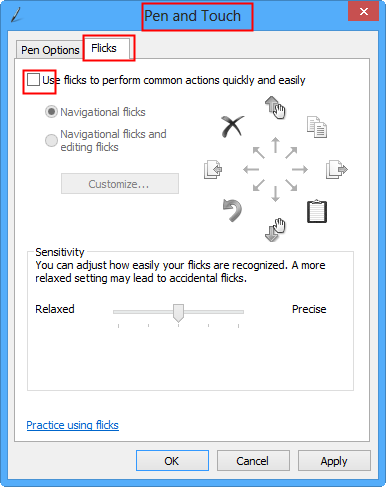
Note that the Control Panel indicates that flick recognition is enabled, however it doesn't actually recognize any flicks. To be safe, I recommend you disable the flicks via Control Panel > Pen and Touch > Flicks. Uncheck Use flicks to perform common actions quickly and easily.

Snap00009


BAD NEWS: PRESS-AND-HOLD STILL OCCURS AND CANNOT BE DISABLED

Remember that press-and-hold ring that would appear in Vista and Windows 7?


Snap000074

In Windows 7, Press-and-hold is enabled by default but could be disabled completely for all applications

In Windows 8, Press-and-hold is enabled by default  and CANNOT BE DISABLED.

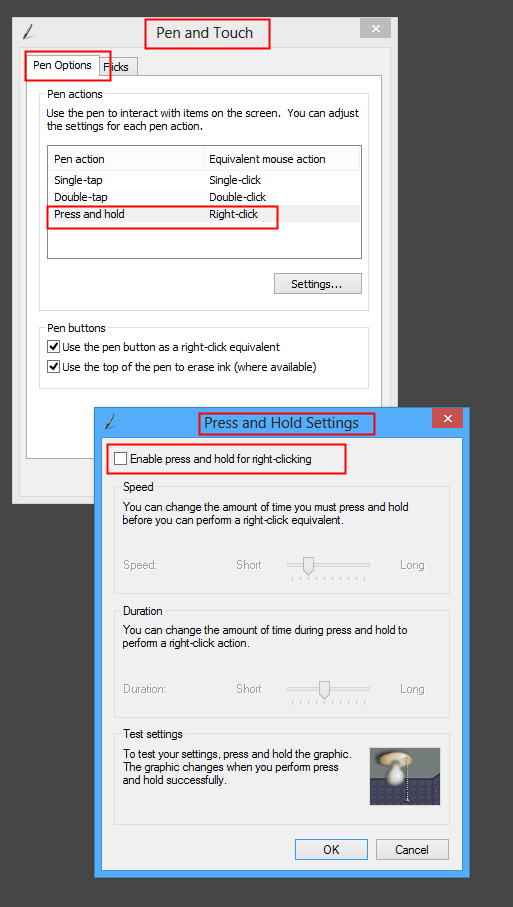
Now, you can try to disable it of course: Go to Control Panel > Pen and Touch > Pen Options > Press and Hold. Click Settings. then uncheck Enable press and hold for right-clicking.
Snap00011

However un-checking the value seems to have no effect at all or at least an inconsistent effect. I want to be clear that I regard this as an incorrect, and illogical behavior and thus a clear bug in Windows 8 RTM. 

To be fair, some pen-based apps (ArtRage for example) are able to disable the feature inside themselves.

BAD NEWS: Dynamic Feedback Cannot Be Disabled
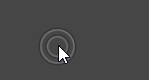
Snap000078

The Dynamic Pen Feedback in Windows 8 RTM behaves somewhat similarly to Press-and-Hold

Previously in Windows 7 we could correct this using some special registry keys and disable it entirely for all applications. Again, the fact that it can't be disabled completely is something I regard as a bug in Windows 8.

And again some pen-based apps do manage to disable it internally.


BAD NEWS: UI Components Sometimes Fail to Work with the Pen completely

There seem to be some occasional odd issues when using doing things like selecting items in comboboxes or dropdown-lists. Sometimes clicks and drags simply “disappear”. I often have to use the mouse or the keyboard to complete the action. Again, this is a very basic bug that I hope gets addressed soon.

Here's a video that demonstrates the problems with dragging objects.

BAD NEWS: The On-Screen Keyboard appears randomly

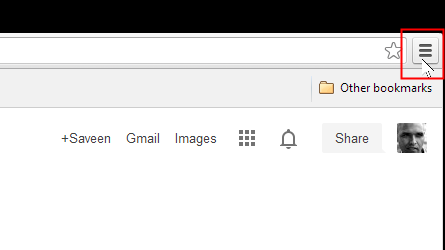
There is some strange combination of Windows 8, Wacom, and certain applications (Chrome seems be the one I see this in a lot), where suddenly the Windows 8 on-screen keyboard appears for no apparent reason. I have no idea what is causing this or why Chrome seems prone to it.


NOTICE: The “Tablet PC Input Service” has been renamed to "Touch Keyboard and Handwriting Panel Service"

Back in Windows Vista and Windows 7, some people would disable the “Tablet PC Input Service” to restore santity to their use of their tablet. I never recommended this procedure, but some people found it effective.

Disabling this service in Windows Vista and Windows 7 was done by starting “services.msc” (The Services admin tool) and then finding “Tablet PC Input Service” and then setting its Startup Type to disabled.

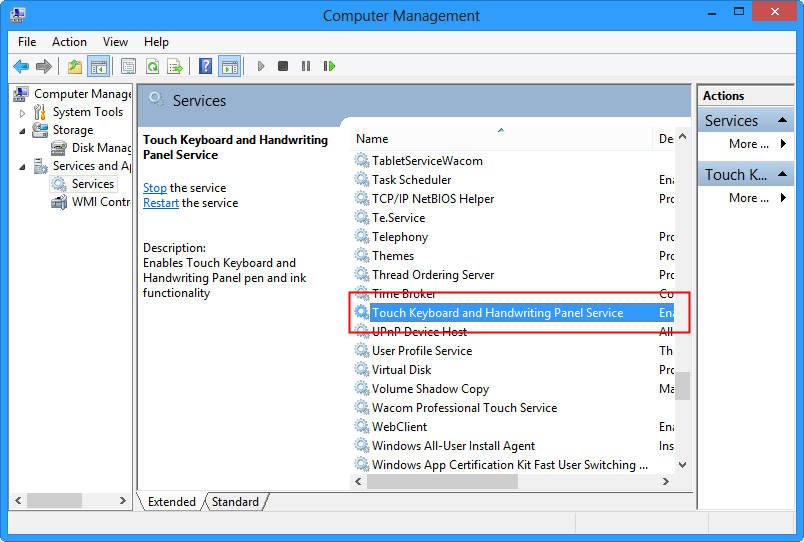
In Windows 8, the service has been renamed. Thus “Tablet PC Input Service” is not longer listed in the Services admin tool. See the screenshot below:
Snap00026

(NOTE: TabletServiceWacom is a different service and needs to be enabled to use your pen)

Fortunately it is there, but renamed to Touch Keyboard and Handwriting Panel Service.
Snap00157

In my experience, disabling this service on Windows 8 does not affect the dynamic feedback ripples or the press-and-hold behavior.


BAD NEWS: Tablet PC Components can not be uninstalled

Another technique people used to solve their problems was to uninstall the “Tablet PC Components” feature. In Windows 7 they would go to Control Panel > Programs and Features > Turn Windows features on or off and then uncheck the item called Tablet PC Input Components.

In Windows 8, this is no longer possible because there is no item called Tablet PC Input Components listed there. See the screenshot below.
Snap00027 


MY DECISION: I am still moving to Windows 8

I am switching to Windows 8 despite some of the issues I have described. The default behaviors seem OK for my uses of pen-based apps. The remaining bugs and strange behaviors I hope will be addressed with a future update.


HAVE A TOUCH DISPLAY: There may be hope

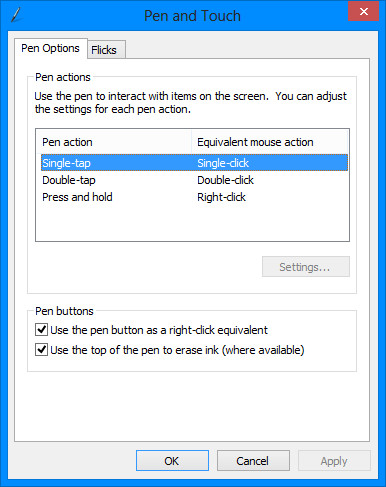
Here's an interesting comparison. Below are screenshots of the Pen and Touch control panel. Both are from Windows 8 RTM. On the left is my desktop on the right is my Acer Aspire S7: a laptop with a built in touch-sensitive display.

Pen and Touch Control panel on Windows 8 with non-touch-sensitive display

Notice that at the bottom there is a group of options called Pen Buttons.
Snap00185


Pen and Touch Control panel on Windows 8 with touch-sensitive display (Acer Aspire S7)

Look at this: Pen Buttons no longer appears. Instead we see Touch Feedback.

The good news is that Windows will now correctly disable Press-and-hold and the option called Show visual feedback when touching the screen will disable the dynamic feedback ripple effect.

  • Snap00002


Checking the Show visual feedback when touching the screen may have some negative consequences when you are actually using touch the screen instead of using your pen –  I didn't use it long enough to see anything though.

Now that we know that Windows can somehow completely disable the hated pen effects, I believe this gives us a reason to believe a solution when using a tablet without a touch-sensitive display is technically possible.

NOTE: See the vertical space between Touch Feedback and Show visual feedback when touching the screen? This hints at the existence of another setting that might exist but is not being shown for some reason.

Can Older Drivers Solve the Problem?

Some people has have reported success in disabling these effects with older Wacom drivers (version “ 6.1.6-7” to be specific). Personally I have not found that using older drivers works with my Intuos 5 and Windows 8 –  in fact the drivers so not seem to work at all.


Q & A

You say you took these screenshots with Windows 8. Why are the corners of the windows rounded?

This is a consequence of my screenshot tool: HyperSnap. It tries to accurately capture the rounded corners of Windows 7, not realizing that it should not continue trimming the corners in Windows 8.

How can encourage Wacom and Microsoft to fix this problem.