If you are using an older Wacom tablet with Windows 7 the Fix My Pen tool will help you get rid of these annoying things in Windows 7:
- Dynamic Feedback “Rings” when clicking
- Pen Flicks
- Tablet PC input panel
- Press-and-hold delay when clicking
NOTE: If you are using Windows 8 or 10, or have a newer Wacom see this post: The Windows and Wacom Tablet Nightmare is Over
Instructions
Download Fix My Pen from here: https://github.com/saveenr/Fix_My_Pen/releases
Right-click on the ViziblrFixMyPen.exe file and select Run as administrator.
When Fix My Pen starts, you will see all the settings are marked “bad”.
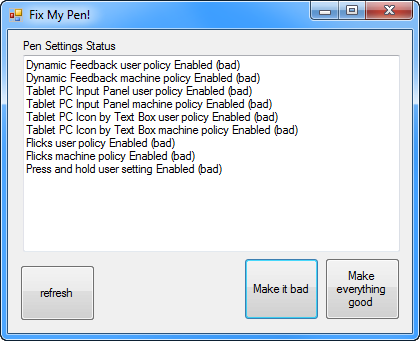
Click Make everything good. Then the program will look like this.
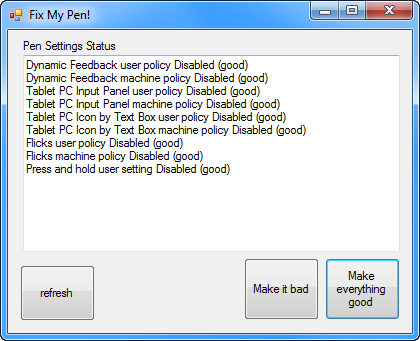
Close the program.
Log-out and log back in to Windows .
Now you can use your Wacom pen without all the Tablet PC nonsense.
I have tested it on Windows 7 Enterprise, Ultimate, and Home Premium.
To Verify that it Works
The Flicks icon will no longer be visible in the Notification Area

The Flicks tab in the Pen and Touch control panel will look like this
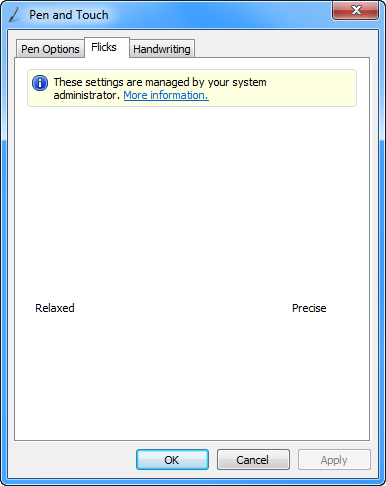
The Tablet PC Input panel will no longer be visible on the Desktop
The Tablet PC icon will no longer show up next to text input boxes
The Tablet PC Input panel options in Control Panel will have several items disabled and grayed-out:
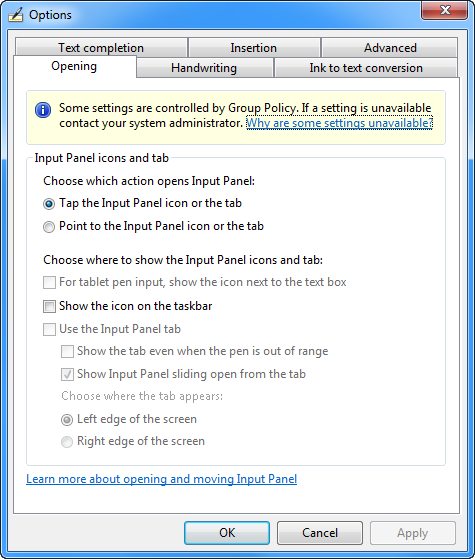
The Press and Hold value in the control panel will be disabled.

Dynamic Feedback rings will be disabled and you will no longer see them when clicking.
Technical Notes
On Windows 7 and Windows Vista you have to follow an arcane set of instructions like this. Fix My Pen, automates those steps – by setting the appropriate Windows registry keys.
License Terms
This is an open source tool distributed under the standard MIT License. You can see the full text of the license here: https://github.com/saveenr/Fix_My_Pen/blob/master/README.md
Source Code
It’s all up here: https://github.com/saveenr/Fix_My_Pen/