Windows 8 RTM and Wacom Tablets - Even More Flawed Than Before
 Saturday, August 18, 2012 at 11:59PM
 PLEASE READ: The Windows and Wacom Tablet Nightmare is Over
- [UPDATE on 2013/06/23] The latest Wacom drivers seem to fix the problem! Investigating now. Will post on it soon.
- [UPDATE on 2013/05/26] Clarified and simplified the section on using older drivers
- [UPDATE on 2013/01/24] Added link to petition and Microsoft communities site
- [UPDATE on 2012/12/20] Added a note about the use of older drivers.
- [UPDATE on 2012/12/27] Added link to a video that shows how affects the “click-drag” operation when using a pen.
- [UPDATE on 2012/12/20] There may be way to at least disable dynamic feedback. Consult this post: http://viziblr.com/news/2012/12/21/a-possible-workaround-for-pen-dynamic-feedback-effects-and-w.html
- [UPDATE on 2012/12/16] Added section on those with Touch displays.
- [UPDATE on 2012/10/27] Added a correction based on reader comments.
- [UPDATE on 2012/08/24] I have updated this post a bit – my initial take was too forgiving.
Some minor things got better. Some major things are worse. The things that we fundamentally hated have now become impossible to fix.
A Quick Summary
- Windows XP: things worked great
- Windows Vista: The default behavior was undesirable but could be corrected by an average user.
- Windows 7: The default continues to be undesirable, and correcting part of the behavior *Dynamic Feedback” was difficult.
- Windows 8 (RTM): The default state is reasonable. If you enjoyed the original XP behavior you will be OK with the default behavior in Windows 8 – with the exception of some odd bugs.
GOOD NEWS: The TABLET PC INPUT PANEL no longer appears by default
Windows Vista and Windows 7 would respond to the presence of the Wacom tablet with the Tablet Input Panel.
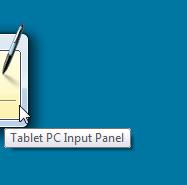
In Windows 8 RTM, this no longer appears by default.
GOOD NEWS: Flicks no longer interferes
In Windows 7 we would see the Flicks icon in the notification area and the Flicks would be enabled by default. We had to disable both the icon and the flicks behavior in the control Panel.
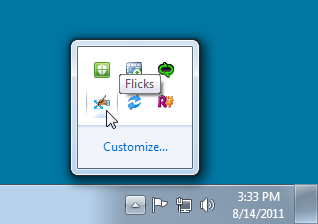
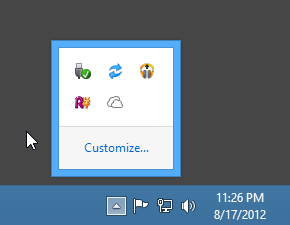
In Windows 8 RTM , the flicks icon lo longer appears in the notification area.
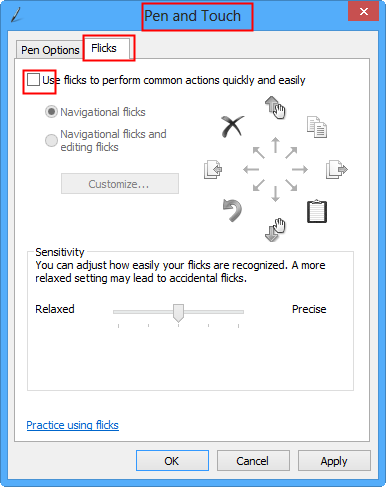
Note that the Control Panel indicates that flick recognition is enabled, however it doesn't actually recognize any flicks. To be safe, I recommend you disable the flicks via Control Panel > Pen and Touch > Flicks. Uncheck Use flicks to perform common actions quickly and easily.
BAD NEWS: PRESS-AND-HOLD STILL OCCURS AND CANNOT BE DISABLED
Remember that press-and-hold ring that would appear in Vista and Windows 7?

In Windows 7, Press-and-hold is enabled by default but could be disabled completely for all applications
In Windows 8, Press-and-hold is enabled by default and CANNOT BE DISABLED.
Now, you can try to disable it of course: Go to Control Panel > Pen and Touch > Pen Options > Press and Hold. Click Settings. then uncheck Enable press and hold for right-clicking.
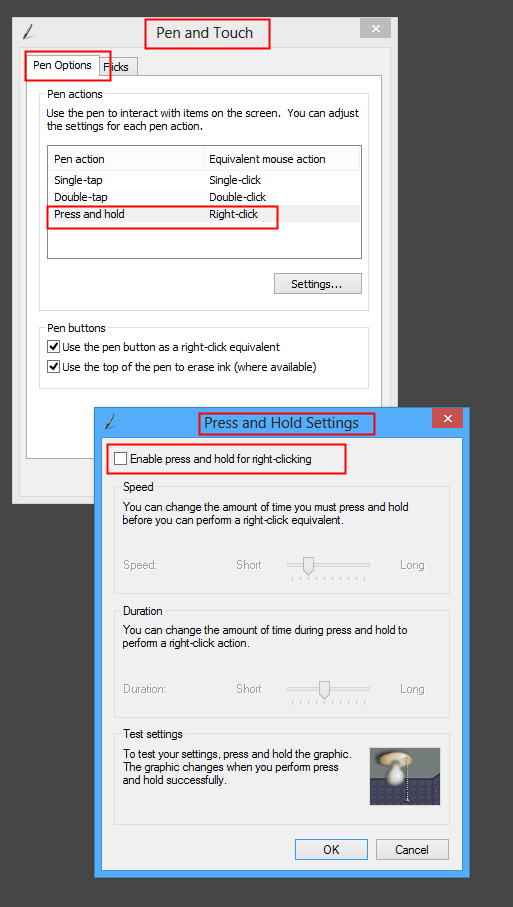
However un-checking the value seems to have no effect at all or at least an inconsistent effect. I want to be clear that I regard this as an incorrect, and illogical behavior and thus a clear bug in Windows 8 RTM.
To be fair, some pen-based apps (ArtRage for example) are able to disable the feature inside themselves.
BAD NEWS: Dynamic Feedback Cannot Be Disabled

The Dynamic Pen Feedback in Windows 8 RTM behaves somewhat similarly to Press-and-Hold
Previously in Windows 7 we could correct this using some special registry keys and disable it entirely for all applications. Again, the fact that it can't be disabled completely is something I regard as a bug in Windows 8.
And again some pen-based apps do manage to disable it internally.
BAD NEWS: UI Components Sometimes Fail to Work with the Pen completely
There seem to be some occasional odd issues when using doing things like selecting items in comboboxes or dropdown-lists. Sometimes clicks and drags simply “disappear”. I often have to use the mouse or the keyboard to complete the action. Again, this is a very basic bug that I hope gets addressed soon.
Here's a video that demonstrates the problems with dragging objects.
BAD NEWS: The On-Screen Keyboard appears randomly
There is some strange combination of Windows 8, Wacom, and certain applications (Chrome seems be the one I see this in a lot), where suddenly the Windows 8 on-screen keyboard appears for no apparent reason. I have no idea what is causing this or why Chrome seems prone to it.
NOTICE: The “Tablet PC Input Service” has been renamed to "Touch Keyboard and Handwriting Panel Service"
Back in Windows Vista and Windows 7, some people would disable the “Tablet PC Input Service” to restore santity to their use of their tablet. I never recommended this procedure, but some people found it effective.
Disabling this service in Windows Vista and Windows 7 was done by starting “services.msc” (The Services admin tool) and then finding “Tablet PC Input Service” and then setting its Startup Type to disabled.
In Windows 8, the service has been renamed. Thus “Tablet PC Input Service” is not longer listed in the Services admin tool. See the screenshot below:
(NOTE: TabletServiceWacom is a different service and needs to be enabled to use your pen)
Fortunately it is there, but renamed to Touch Keyboard and Handwriting Panel Service.
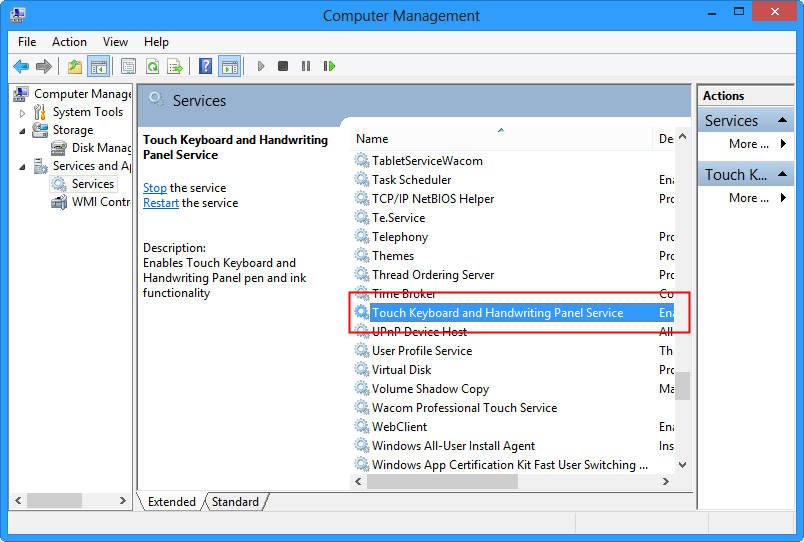
In my experience, disabling this service on Windows 8 does not affect the dynamic feedback ripples or the press-and-hold behavior.
BAD NEWS: Tablet PC Components can not be uninstalled
Another technique people used to solve their problems was to uninstall the “Tablet PC Components” feature. In Windows 7 they would go to Control Panel > Programs and Features > Turn Windows features on or off and then uncheck the item called Tablet PC Input Components.
In Windows 8, this is no longer possible because there is no item called Tablet PC Input Components listed there. See the screenshot below.
MY DECISION: I am still moving to Windows 8
I am switching to Windows 8 despite some of the issues I have described. The default behaviors seem OK for my uses of pen-based apps. The remaining bugs and strange behaviors I hope will be addressed with a future update.
HAVE A TOUCH DISPLAY: There may be hope
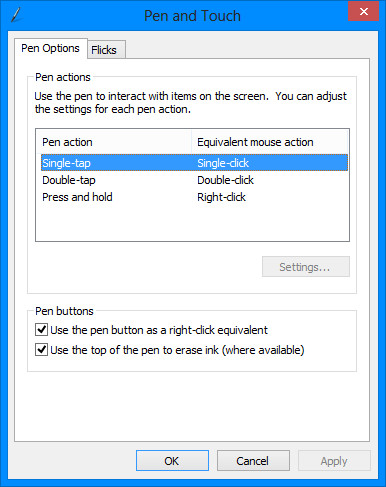
Here's an interesting comparison. Below are screenshots of the Pen and Touch control panel. Both are from Windows 8 RTM. On the left is my desktop on the right is my Acer Aspire S7: a laptop with a built in touch-sensitive display.
Pen and Touch Control panel on Windows 8 with non-touch-sensitive display
Notice that at the bottom there is a group of options called Pen Buttons.
Pen and Touch Control panel on Windows 8 with touch-sensitive display (Acer Aspire S7)
Look at this: Pen Buttons no longer appears. Instead we see Touch Feedback.
The good news is that Windows will now correctly disable Press-and-hold and the option called Show visual feedback when touching the screen will disable the dynamic feedback ripple effect.

Checking the Show visual feedback when touching the screen may have some negative consequences when you are actually using touch the screen instead of using your pen – I didn't use it long enough to see anything though.
Now that we know that Windows can somehow completely disable the hated pen effects, I believe this gives us a reason to believe a solution when using a tablet without a touch-sensitive display is technically possible.
NOTE: See the vertical space between Touch Feedback and Show visual feedback when touching the screen? This hints at the existence of another setting that might exist but is not being shown for some reason.
Can Older Drivers Solve the Problem?
Some people has have reported success in disabling these effects with older Wacom drivers (version “ 6.1.6-7” to be specific). Personally I have not found that using older drivers works with my Intuos 5 and Windows 8 – in fact the drivers so not seem to work at all.
Q & A
You say you took these screenshots with Windows 8. Why are the corners of the windows rounded?
This is a consequence of my screenshot tool: HyperSnap. It tries to accurately capture the rounded corners of Windows 7, not realizing that it should not continue trimming the corners in Windows 8.
How can encourage Wacom and Microsoft to fix this problem.
- Sign this petition
- Share your experiences at the Microsoft Communities site, as you can see this is a common topic.
Reader Comments (64)
Hi,
You actually CAN disable Dynamic Feedback:
"1. Hit "Windows - R"
2. Type gpedit.msc and hit enter
3. Click through User Configuration --> Administrative Templates --> Windows Components --> Tablet PC --> Cursors
4. Double click on "Turn off pen feedback" and select "Enabled"
5. Click "Apply"
6. Click "OK""
Wacom Press Release: http://www.wacom.com/en/company/news/news-bucket/2012/10/26/wacom-announces-new-driver-software-to-support-microsofts-windows-8-operating-system
Summary:
- Starting on November 2nd., new drivers will be available for Wacom’s professional line of Intuos and Cintiq products.
- Starting on November 16th, new drivers will be available for the Bamboo line of pen tablets.
Fingers crossed... I have Bamboo and it's Nov 4th. Just ordered a new Intuous cos I can't wait any longer :-) Fingers crossed.
Anybody tried the update yet?
@simon - I have installed the latest driver (WacomTablet_634-3.exe) on Windows 8. It did not improve anything (related to the issues I described above) as far as I could tell.
@Ark-kun
>>"Case 1: No Pen Driver is installed."
> Does that mean no driver at all - even Microsoft one? Microsoft has tablet drivers and provides calibration tools.
When the Wacom driver is not installed Windows does have some default support for using the pen and stylus. However, that support seems to treat the pen as if it were a mouse and so, for example, the pen position is tracked relatively to the screen instead of absolutely. Also other tablet features are not turned on (dynamic feedback, etc).
>>Is registry key problem due Wacom or Windows?
>>Windows. Definitely.
>I disagree. When different Wacom drivers produce different behavior on the same system,
>I'd blame the drivers.
I think we may be talking about slightly different things. I agree with you with regard to the behavior for pen-aware applications that something about the way the driver interacts with Windows seems incorrect. If that was fixed that would be great - it would still not meet my needs however because I need the pen effects disabled on all applications.
With regard to the global disabling of the pen effects that is Windows responsibility. That is the purpose of placing them into Group Policy settings: they are meant to override application-specific or user-specific settings. The evidence we have is that using two very different tablet driver implementations (Wacom and MonoPrice) the Group Policy settings work on Windows 7 and no longer work on Windows 8. After investigating it a bit more, I think I have a suspicion on what is going on with Windows 8, and am writing a diagnostic application to help track down the issue. I should get some results later next week.
> I also noticed that Wacom drivers disable all Microsoft's tablet services
> and run Wacom's own replacements.
Can you elaborate which services and replacements you mean? I wasn't aware of the Wacom driver doing that, but perhaps I just never noticed.
>The ultimate test would be testing the key without Wacom drivers. If we get it to work both ways (enabled/disabled) then the blame target would be obvious.
When there are no tablet drivers installed (Wacom, MonoPrice, or other) the keys have no effect. Windows will not showing an pen effects in this scenario. And the keys cannot enable or disable the effects - I tried this on my system just now to verify.
>P.S. I've never experienced ripples in Photoshop. I've come to this page because my wife complained about ripples in Chrome.
Photoshop - I assume they have disabled it specifically for their application
Chrome - same experience for me. If the group policy registry key worked as it did in Windows 7, then those problem could be addressed.
Guys read the last post here, is he on to something?
http://answers.microsoft.com/en-us/windows/forum/windows_cp-hardware/wacom-pen-touch-bug-in-release-windows-8/c96d5afa-f5bb-4356-96ea-28540c0acc2e
@thomaskc
The issue described at that page is real and I really should mention it on this page at some point.
BACKGROUND
So let's examine what he describes: When the User Access Control pops up, the Wacom pen no longer operates.
This issue has been around since Windows 7 (probably even Windows Vista), I see this behavior all the time in both Windows 7 and Windows 8.
Note: This problem is dependent on the tablet drivers. For example, it does not occur with the MonoPrice tablet driver - the MonoPrice pen works correctly when UAC appears.
A SIMPLE WORKAROUND
That post suggests disabling UAC. But that is not needed. I have a much simpler solution.
When the UAC prompt appears and you can no longer see the cursor or control it with the pen, simply move the pen a good distance away from the tablet for a second. I usually raise my arm for a second as if I were waving "hello" at someone. (The distance really doesn't need to be so large as I describe.) And then when I touch the tablet next, the pen is again in control. In my experience, having the pen "disconnect" and be "rediscovered" by the tablet seems to "reset" things back to normal.
DOES DISABLING UAC HELP IN DISABLING PEN EFFECTS>
No. Disable UAC only removes the UAC problem. It doesn't affect at all any of the other problems we have (pen effects, etc.)
YOU REALLY SHOULD LEAVE UAC ENABLED
Also, having worked in Windows Security at Microsoft - I DO NOT RECOMMEND disabling UAC. As irritating as UAC can be at times, It is a critical part of keeping you safe.
I appreciate the maintenance of this blog post! I am checking it every couple of days in hope of a successful fix. This wacom problem is the only reason why I can't (ive tried) update to Windows8, I really like every other aspect of windows 8 from a performance/core/memory point, but my tablet not working is a deal breaker, so had to go back to win7.
I see a lot of posts on wacoms forums and even on microsofts forums about this exact problem, but so far... wacom seems to play the retarded tech support (you have tried restarting) type of helper and MS is just silent.
Here is the real question everyone should be asking:
"Why on God's green planet would Microsoft program the annoying rings in the first place?"
I've been using Wacom tablets since 1999 and I've NEVER meet a single user who said "Man, I really love those rings that expand from my pointer every time I click or right click with my Tablet! Because I sometimes just can't tell if Im touching the tablet or not. But the rings will tell me!" Im willing to bet you never met a user like this also.
Microsoft, Here's a tip and pass this to the Geniuses Department that works on coding tablets - If the users are annoyed with it, then it is NOT a feature!" Oh, and for the love of God, removing the options that would allow users to disable your "features" is just an insult and torturing. Do NOT blame Wacom. The Rings of Stupidity are programmed by Microsoft and Microsoft alone.
I've just downloaded an installed the 530-3 driver, and the only difference I found is that the option "Add touch to the right" disappeared from the "Touch functions" tab
Solution for those who are using Intuos3:
- Uninstall Your lastest Wacom Drivers
- Go to http://www.wacom.com/support/drivers
and download Driver 6.1.6-7 for USB Tablets on Windows 7, Vista or XP (32 & 64 bit)
- all problems solved :)
Regrettably, after I "upgraded" my work machine From windows 7 to 8, I discovered I could not reliably use my Wacom tablet anymore, I'm a photographer and designer who's relaying heavily on the use of the Wacom tablet and it's just not working right, It made my work impossible, and so I had to reinstall win7. Don't get me wrong, I really like the new design, But as I wrote to the Microsoft support team, They made a nice looking system that is a UX disaster, Lacking so many basic options in so many apps(No ability to flag messages in the mail app? Really?), I hope they're fixing it as I'm writing these words. That's what I get for being an early adopter.
I see that Wacom's site offers Bamboo series users updated drivers (Nov 15) for Windows 8. (I'd assume there's one for the professional models, too, no?) Does anyone have experience with the new driver(s)? Here's the info description:
Driver 5.3.0-3 for Windows 8, Windows 7, Vista & XP (32 & 64 bit versions):
Driver supports all Bamboo tablets and the Graphire4. Also supports Cintiq 17SX, DTF-720, DTU-710, DTF-521 & DTF-510 pen displays.
Notes:
1.Added support for Windows 8.
2.Added new Windows 8 1-finger "swipe" gestures.
3.Implemented enhancements to the touch user interface
The alternative to a fixed new driver would be to try an old one. For Bamboo, the old 5.2.1-6a version works for me in Win8 (without connecting Wacom Bamboo tablet until after the software is installed, of course). As you've read here previously, using an old driver for the professional models of tablets might not stick, but the one for Bamboo has worked well for me.
Does this work for anyone?
http://forum.wacom.eu/viewtopic.php?f=2&t=11674
Is it suppose to work just for tablets connected with USB or also to samsung ativ where the digitizer is integrated with the tablet?
use old Driver 6.1.6-7
@Lukas Aschmann
Lukas I've tried that technique on about 5 different machines with no luck. I am curious why it seems to work for you. Can you tell me which version of the Wacom driver you are using and which model of PC? There may be something in that combination that affects the pen behaviors.
And my apologies for my late reply, your comment on Nov 4 2012 was incorrectly identified as spam. I only just today (2012-12-16) saw it and un-flagged it as spam.
@Mark
I tried the link you provided with my Acer Aspire S7 - this is a Windows 8 machine with a touch display. Indeed, when there is a touch display on Windows 8 then new options appear in the Pen and Touch control panel.
Specifically there are two options that appear under this condition that do not appear otherwise:
Under the category of "Touch Feedback" there is an option called "Show visual feedback when touch the screen". Checking this will remove the dynamic feedback ripple effect with using a Wacom Pen. Even press-and-hold can now be enabled.
Thanks for sharing. Although this method is only useful for those with a touch display, it does give me some hope that a solution is at least possible for those of us using Wacom tablets with non-touch displays.
Also, I have updated the text of my post to include this additional information.
I've started a petition... Maybe that will get more response.
---
https://www.change.org/en-AU/petitions/wacom-and-microsoft-fix-the-wacom-driver-issues-and-windows-8-pen-subsystem
---
@Mark - thanks for creating the petition. I hope it gets their attention. I signed it just now.
@saveenr
Is there a chance you could update your FixMyPen script for Windows 8 with the steps from the Wacom forum?
You said it works for you with your Acer Aspire S7.
http://forum.wacom.eu/viewtopic.php?f=2&t=11674
Your tool is very useful in Windows 7 and we'll be grateful if you could update it.
Thanks
@Mark - I also tried out the solution on my standard desktop and it seemed to at least disable dynamic feedback. With regard to using this as a workaround please see my latest post on this topic:
http://viziblr.com/news/2012/12/21/a-possible-workaround-for-pen-dynamic-feedback-effects-and-w.html
Other interesting websites